
AI-Tagged Reports
What are AI-tagged reports?
AI-tagged reports use Skaler's automatic creative tagging to break down your ad performance by creative attributes — like asset type, visual format, messaging angle, or persona — rather than just by ad name or campaign.
This lets you answer questions like "Do UGC-style ads outperform studio shots?" or "Which messaging angle drives the best ROAS?" without manually categorizing anything.
How AI tagging works
Skaler automatically analyzes your ad creatives and assigns tags across several categories:
Visual tags
- Asset Type — e.g., UGC, Studio, Stock, Graphic, Screenshot.
- Visual Format — e.g., Single image, Carousel, Before/After, Collage, Split screen.
Hook tags
- Hook — The opening hook style used in video ads.
- Headline — The headline approach or format.
Messaging tags
- Messaging Angle — e.g., Social proof, Pain point, Benefit-led, Fear of missing out.
- Persona — The voice or character used (e.g., Founder, Customer, Expert).
- Setting & Environment — Where the ad takes place (e.g., Home, Outdoors, Office).
- Offer Type — e.g., Discount, Free trial, Bundle, Limited time.
- Seasonality — Seasonal or event-based tags (e.g., BFCM, New Year, Summer).
Creating an AI-tagged report
- Open the Analytics sidebar and click Create Report.
- Under AI Analysis, choose the tag category you want to analyze.
- The primary options are: Asset Types, Visual Formats, Messaging Angles, and Personas.
- Click View more for additional categories: Hooks, Headlines, Settings & Environments, Offer Types, and Seasonality.
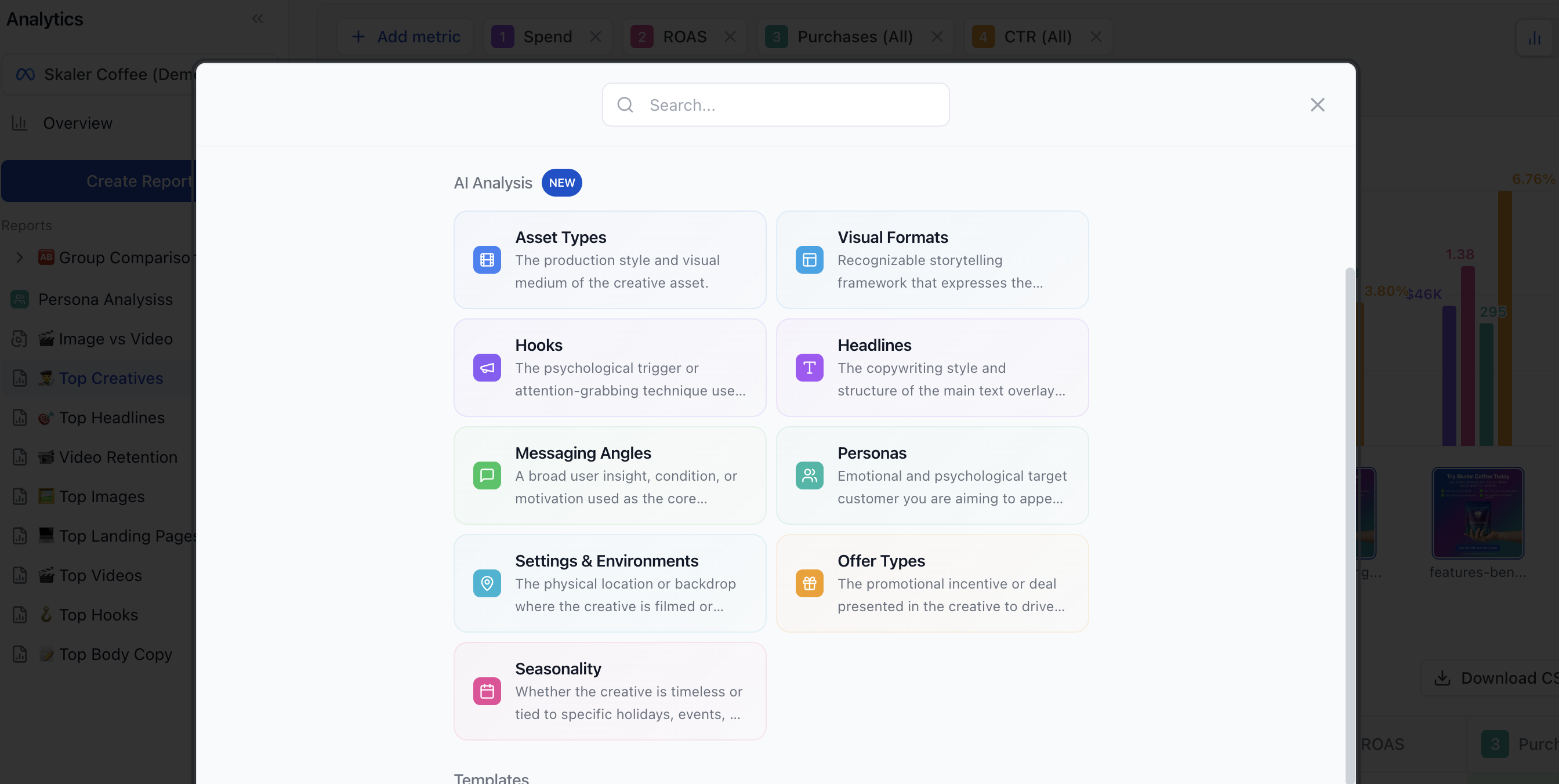
- Your report opens pre-configured to group data by that AI tag, so you immediately see performance broken down by tag value.
Using AI tags in any report
You can also add AI tags to any existing report:
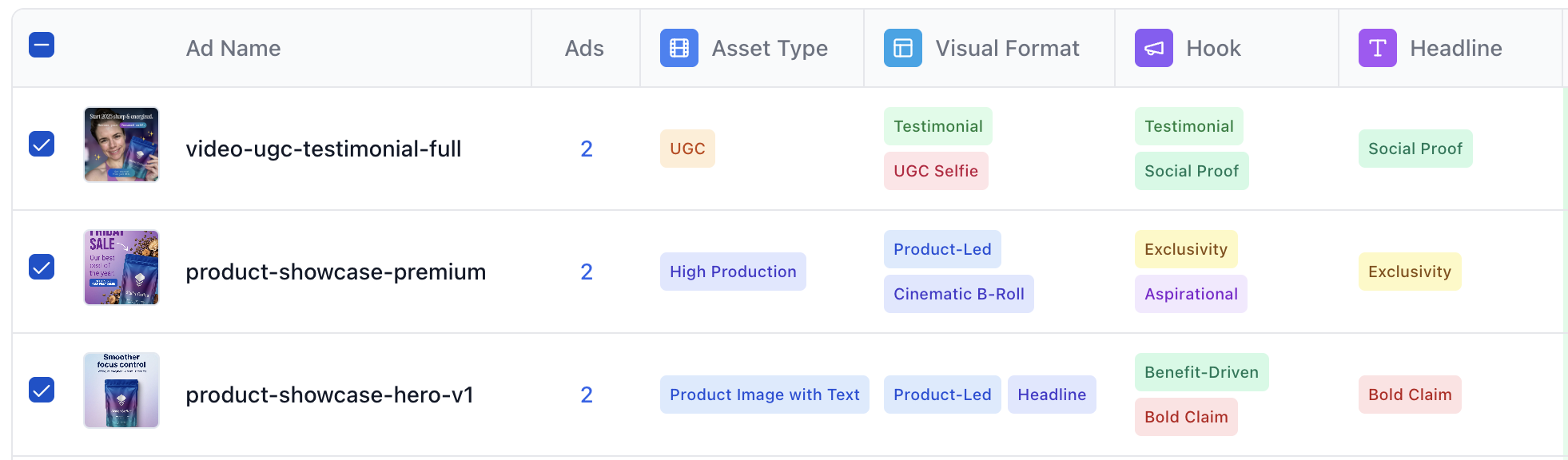
- Group by — In the report controls, change the "Group by" dropdown to any AI tag category (e.g., "Asset Type" or "Messaging Angle") to see your data segmented by that tag.
- Filter by — Add filter rules using AI tags to narrow your data (e.g., show only ads tagged as "UGC").
- Table columns — Open the column drawer and look under the "AI Tags" category to add tag columns to your table view.
Viewing tags on individual ads
You can also see the AI tags assigned to any individual ad:
- Click on an ad in a report or in the Ad Creatives section of the Overview dashboard.
- In the ad detail view, switch to the AI Tags tab.
- You'll see all tags assigned to that creative across every category.
Tips
- Use AI-tagged reports to find winning creative patterns — if "UGC" consistently beats "Studio" on ROAS, double down on that format.
- Combine AI tag grouping with filters (e.g., group by Messaging Angle, filter to video only) for sharper insights.
- Export your AI-tagged report to CSV to share findings with your creative team.