Navigating the Dashboard
Overview
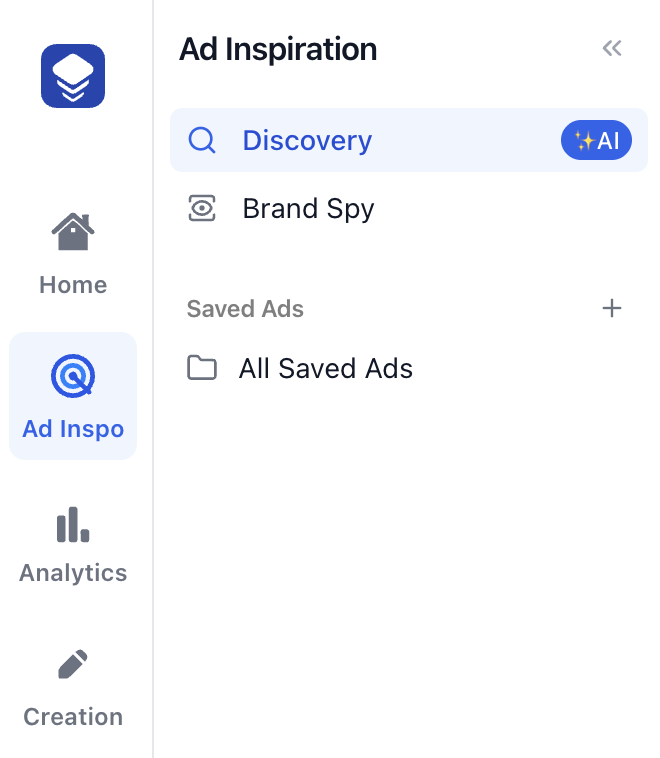
The Skaler dashboard is organized into four main sections, accessible via the Navigation Rail on the left side of the screen.
Main sections
Home
Your central hub showing an overview of recent activity and a setup guide with quick tasks to get started:
- Add your first product
- Clone your first ad
- Spy on a brand
- Connect your ad account
- Explore similar brands
Ad Inspo
Tools for research and creative inspiration. The sidebar includes:
- Discovery — Browse trending ads and search by brand, keyword, or AI-powered queries.
- Brand Spy — Track and analyze competitors' advertising strategies.
- Saved Ads — Your saved ads organized into boards and sub-boards.
- Chrome Extension — Save ads directly from Meta, TikTok, and LinkedIn ad libraries.
Analytics
Performance tracking and insights:
- Account Selector — Switch between connected Meta Ad accounts.
- Overview — Dashboard with key metrics, breakdowns, and ad creatives analysis.
- Reports — Create and organize custom reports in folders.
Creation
AI-powered content creation tools:
- Images — Generate style variations, product shoots, UGC images, ad variations, and more.
- Videos — Create video content from static images or generate UGC videos.
- Hooks — Create compelling video ad hooks.
- My Products — Manage your product profiles.
- Product Assets — Upload and organize product-specific images and videos.
User menu
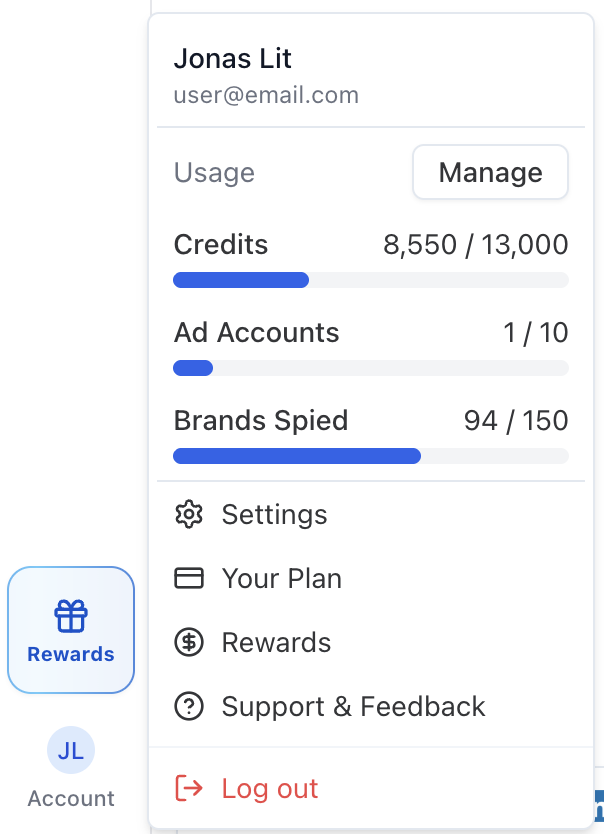
Click your avatar in the bottom of the Navigation Rail to access:
- Settings — Update your name.
- Your Plan — View and manage your subscription.
- Rewards — Check referral rewards.
- Support & Feedback — Send feedback or get help.
- Log out — Sign out of your account.
Your credit balance and usage limits (ad accounts, brands spied) are also shown in this menu.