
Saving Ads to Boards
What are Boards?
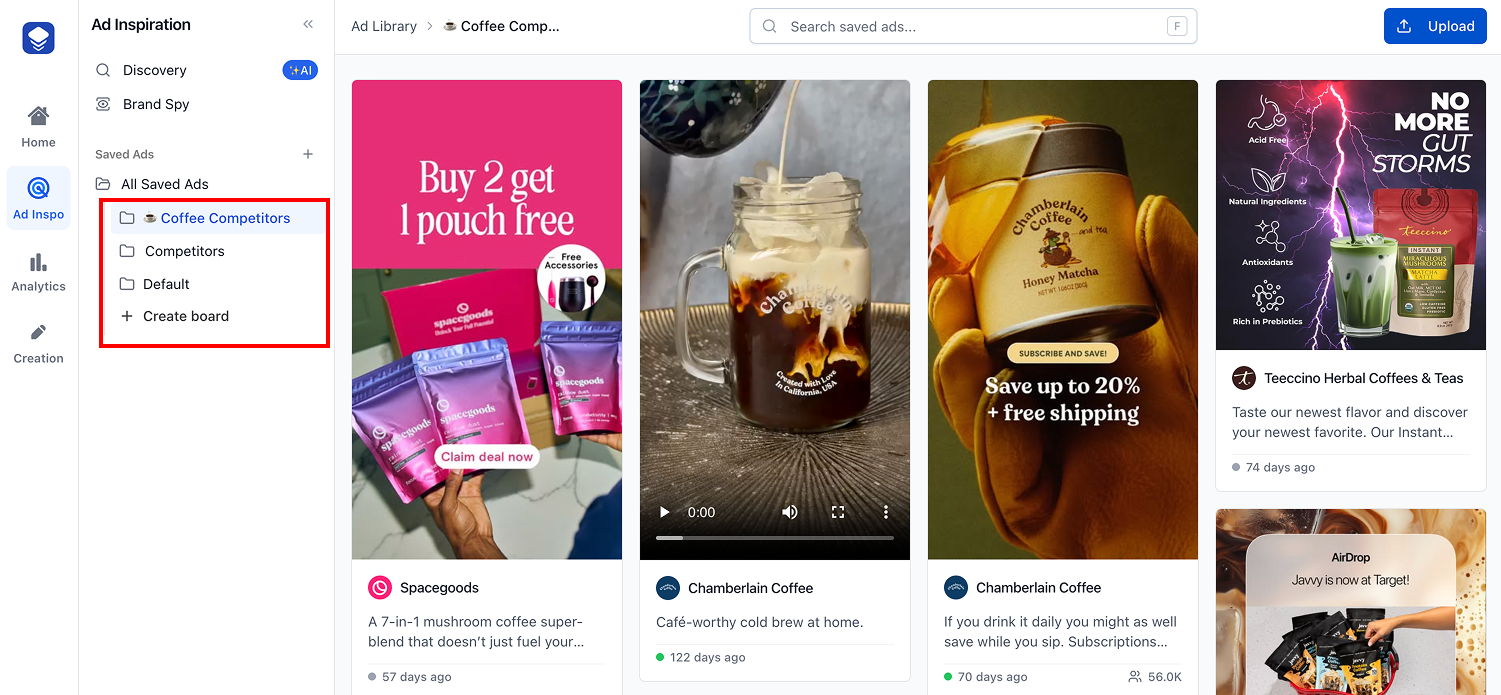
Boards are how you organize saved ads in Skaler's Ad Library. Think of them like folders — you can group ads by campaign theme, format, competitor, or any other category that makes sense for your workflow.
Creating a board
- Go to Ad Inspo > Saved Ads or All Saved Ads from the sidebar.
- Click New Board or create one directly from the sidebar.
- Give your board a name.
You can also create sub-boards within a board for more granular organization.
Saving ads to a board
There are several ways to save ads:
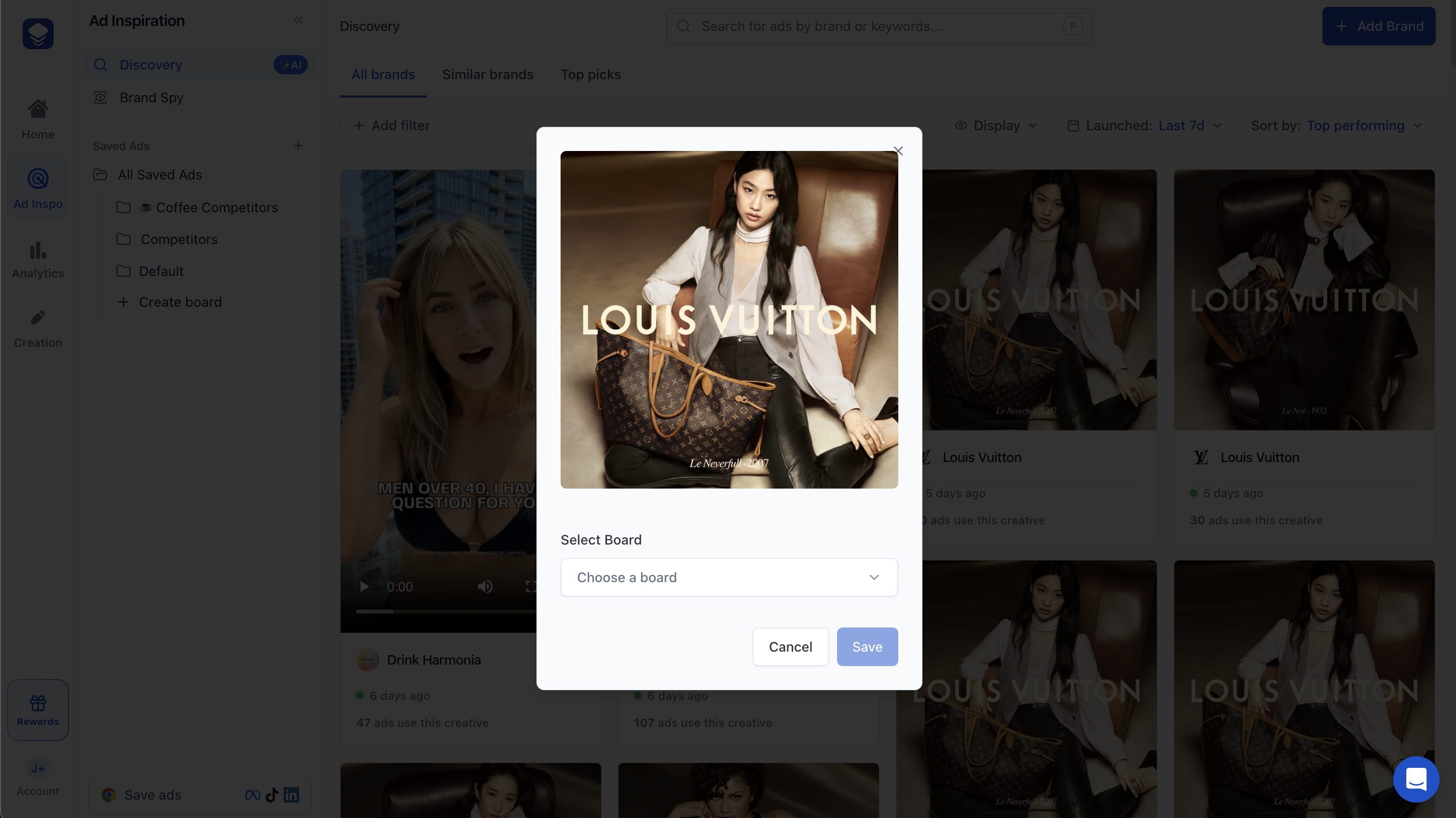
- From Discovery — Click the save icon on any ad card, choose a board from the dropdown, and click Save. Skaler will automatically extract and transcribe all text from the ad.
- From Ad Templates — Save any template to a board for later use.
- From the Chrome Extension — Save ads directly from the Meta, TikTok, or LinkedIn Ad Library websites with one click.
- Upload — Upload your own images or videos directly to a board (requires a paid plan).
Managing boards
- Search across all saved ads using the search bar.
- Filter by type (image, video), product, or language.
- View "Cloned Ads" to see ads you've generated via the Ad Cloning tool.
Best practices
- Create boards for different projects or campaigns.
- Use sub-boards for sub-categories (e.g., a "Competitors" board with sub-boards per competitor).
- Use the Chrome Extension to save ads as you browse — it's the fastest way to build your library.