
LinkedIn Ad Library: The Complete 2025 Guide to B2B Competitor Ads
Learn how to use the LinkedIn Ad Library for B2B competitor research in 2025. Discover LinkedIn ad examples, transparency data, targeting insights — and how to turn competitor research into winning ads.

 Follow on LinkedIn
If you run B2B campaigns, the LinkedIn Ad Library is the closest thing you’ll get to a live feed of what your competitors are running right now.
You can see:
- Every ad a company has run in the last 12 months
- The formats and funnels they use
- Extra transparency data for EU campaigns (impressions, targeting, dates)
But just like Meta’s library, LinkedIn’s version has limits — no performance metrics, no permanent swipe file, no AI search, and definitely no way to turn one great ad into a dozen on-brand variations.
This guide breaks down everything you can (and can’t) do with the LinkedIn Ads Library in 2025 — and how modern B2B teams use tools like Skaler to go from spying on ads to actually shipping better ones.
What Is the LinkedIn Ad Library?
The LinkedIn Ad Library is a public, searchable archive of ads that have run on LinkedIn over the past year.
You can use it to:
- See live and recent LinkedIn ad examples
- Research LinkedIn competitor ads in your niche
- Understand high-level LinkedIn ad targeting and transparency data
- Find B2B ad examples for inspiration and benchmarking
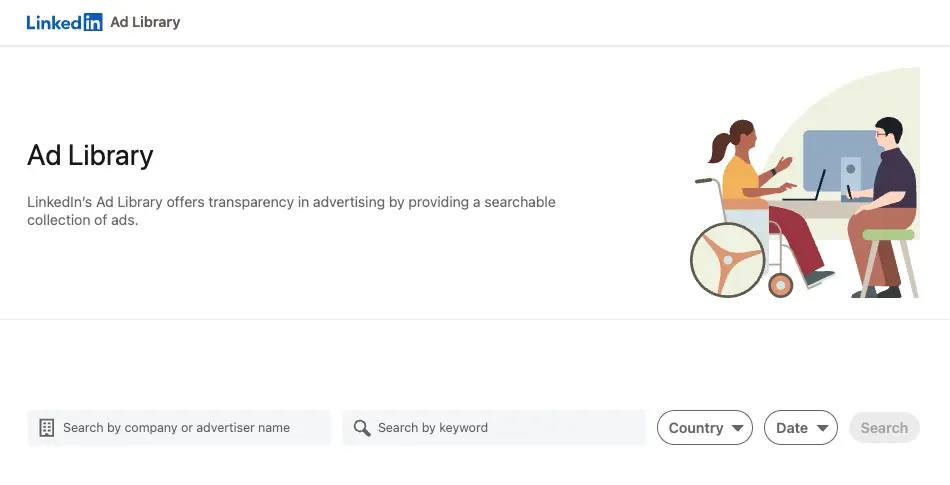
The LinkedIn Ad Library interface — a searchable list of every ad a company runs on the platform.
Unlike your personal feed, the library isn’t algorithmic. If an ad exists and matches your filters, you’ll see it.
You don’t need an ads account to access it — just go to:
👉 linkedin.com/ad-library/home
How to Access the LinkedIn Ads Library
Getting started is simple:
- Visit the link above
- Pick your country
- Choose your search type (advertiser or keyword)
- Hit search to see every matching ad
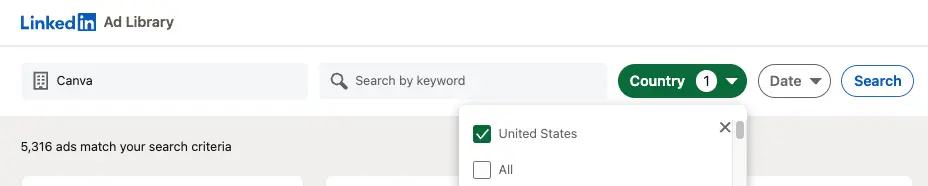
The LinkedIn Ads Library home screen — search by advertiser name or keyword, then filter by country and date.
From there, you can drill down into specific advertisers, campaigns, or time ranges.
How to Search the LinkedIn Ad Library (Step-by-Step)
The LinkedIn ad search bar supports a few main workflows. Use them together to get the best signal.
1. Search by Advertiser Name (Competitor View)
Type a company name into the search bar to see all the LinkedIn competitor ads they’ve run in the last year.
Examples:
- “HubSpot”
- “Notion”
- “Salesforce”
You’ll get a grid of their ad creatives with:
- Ad text
- Media previews (image, video, carousel)
- Basic metadata like dates, payer, and restrictions
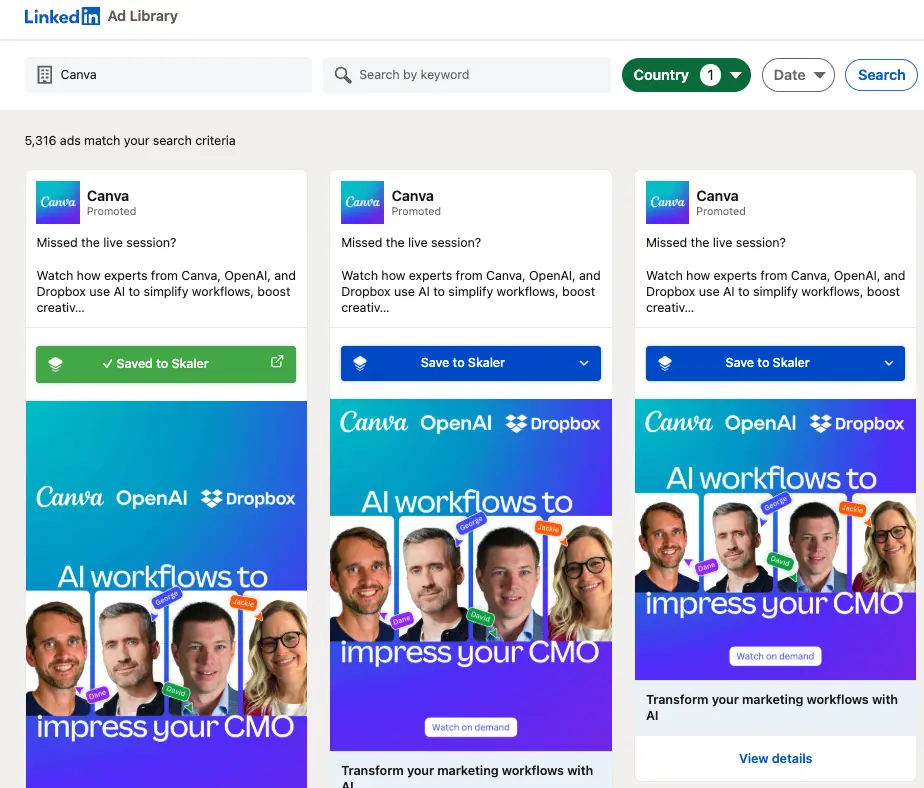
Searching the LinkedIn Ads Library by advertiser to get a full view of their live and recent campaigns.
This is the fastest way to start real LinkedIn competitor analysis.
2. Search by Keyword (Topic / Problem View)
Instead of specific brands, search for themes and problems your buyers care about:
Examples:
- “pipeline generation”
- “SOC 2 compliance”
- “warehouse management”
- “marketing attribution”
This reveals LinkedIn ad examples across many competitors and industries at once, and is ideal for:
- Discovering new players in your category
- Spotting emerging LinkedIn ad strategy trends
- Building your own LinkedIn ad inspiration board
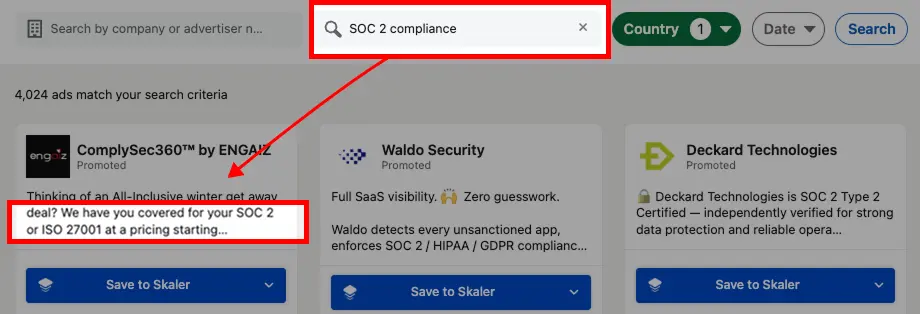
Keyword search showing multiple advertisers targeting the same problem and audience.
3. Filter by Country and Date
Once you’ve got results, use filters to turn noise into signal:
- Country – See how brands localize for US vs DACH vs UK vs Nordics
- Date Range – Switch between:
- Last 30 days → current tests
- This year → full strategy snapshot
- Last year → historical B2B ad examples and seasonal patterns
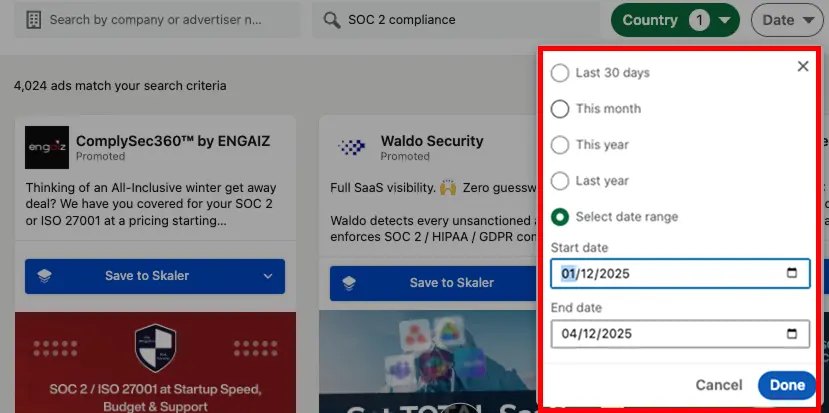
Use country and date range filters to focus on the markets and time windows that matter to you.
What Data Can You See in the LinkedIn Ad Library?
Beyond the creative itself, the library exposes a range of LinkedIn ads transparency and audience insight fields — especially for EU-targeted campaigns.
1. Standard Fields (All Ads)
For every ad you’ll see:
- Ad preview (image/video, text, headline)
- Advertiser and payer names
- Ad format (single image, video, carousel, message, etc.)
- Published / active dates
- Restriction labels (e.g. political, social issues, credit, housing)
This alone turns the library into a rich LinkedIn creative library for B2B marketers.
2. Transparency Data for EU Ads
For ads targeted to EU audiences, LinkedIn exposes additional info:
- Impression ranges (rough reach estimates)
- High-level LinkedIn ad targeting parameters:
- Geography
- Industries
- Company size
- Job seniority / functions
- Exact dates the ad was live
- Details on any ads restrictions
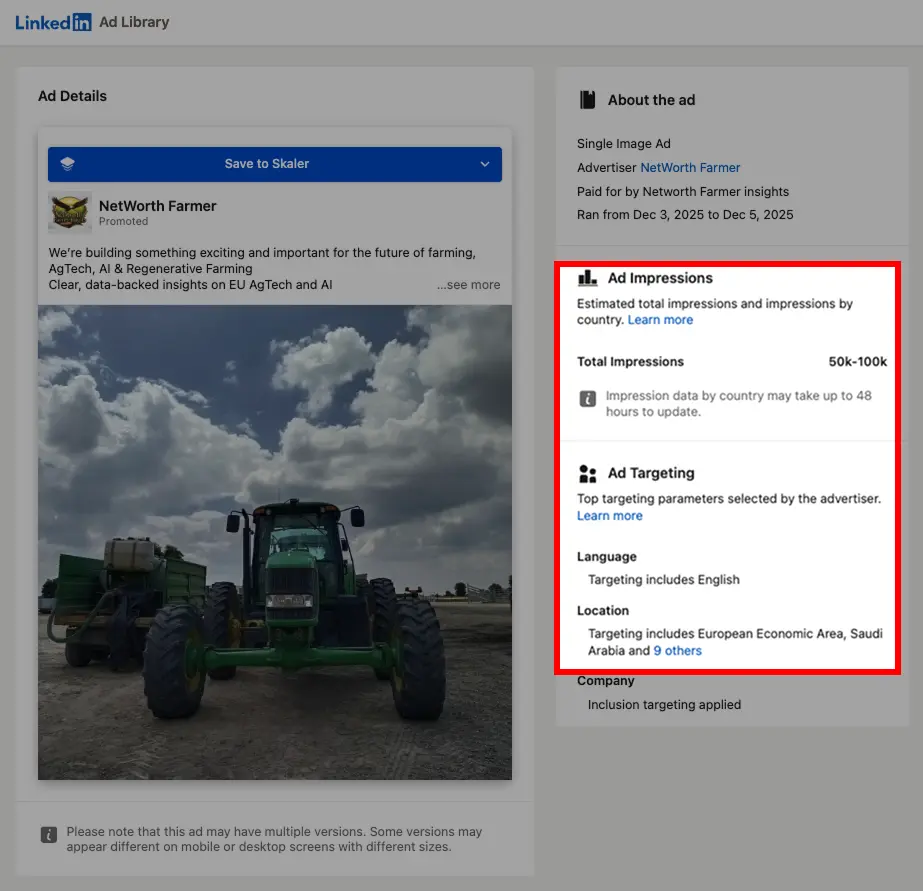
Example of the transparency panel for an EU-targeted LinkedIn campaign — includes impressions and high-level targeting.
This effectively turns the library into a free LinkedIn audience insights tool — especially helpful when you’re unsure which segments to start with.
What You Can Actually Learn From the LinkedIn Ad Library
Once you get past the UI, the library is insanely useful for shaping your LinkedIn ad strategy.
1. Long-Running vs. Short-Lived Creatives
If a B2B brand keeps an ad live for months, it usually means:
- The angle is working
- The offer converts
- The creative is efficient enough to justify ongoing spend
Short-lived ads, on the other hand, can signal:
- Tests that didn’t perform
- Seasonal experiments
- Narrow, one-off messages
Use the date range and live vs historical views to reverse-engineer what’s “evergreen” vs “experimental.”
2. B2B & Lead Gen Ad Examples
The library is packed with B2B ad examples and LinkedIn lead gen ads examples, including:
- Free trial / demo ads
- Lead magnets (reports, checklists, templates)
- Event and webinar promotions
- Product feature highlights
- Case studies and social proof ads
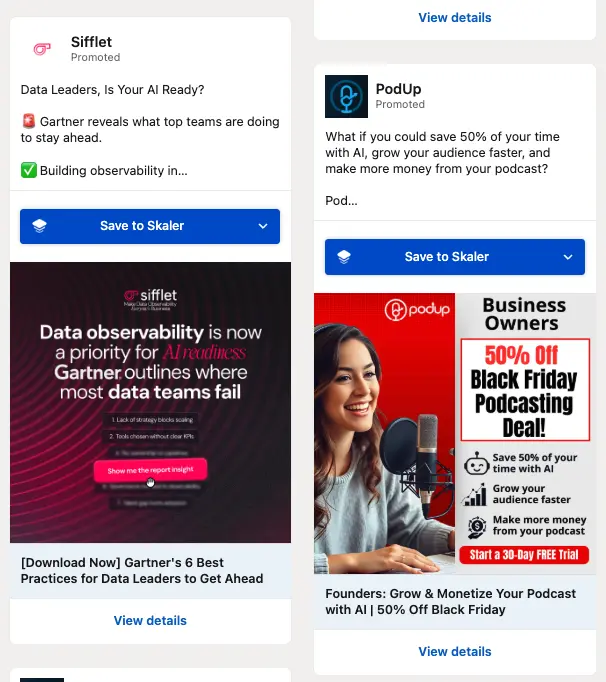
A mix of trial, webinar, and case-study ads — perfect for building a swipe file of B2B LinkedIn ad examples.
Study:
- Which offers show up repeatedly
- How brands position value (time saved, revenue, risk reduction)
- What formats dominate your category (video vs image vs carousel)
3. Creative & Messaging Patterns
Within a niche, you’ll start noticing repeatable patterns:
- “X mistakes” and “Don’t do this” hooks
- Founder or CMO POV posts turned into ads
- Screenshots and UI-heavy creatives
- UGC-style vertical videos in a traditionally “corporate” feed
Document these as message frameworks, not single ads:
- Pain → Outcome → Proof
- Old way vs New way
- Before / After transformation
- “Steal our playbook / template” lead gen angle
These frameworks will power your own creative production later.
4. Audience & Positioning Insights
When you look at enough ads from the same brand, you’ll see:
- Who they actually care about (functions, seniorities, industries)
- Which regions get the most budget
- Whether they lean into “product-first” or “outcome-first” messaging
This is priceless LinkedIn competitor analysis — especially when combined with the transparency panel for EU campaigns.
The Limits of the LinkedIn Ads Library (for Performance Teams)
As powerful as it is, the library has hard constraints:
❌ No performance metrics (CTR, CPL, ROAS)
❌ No way to sort ads by longevity, spend, or number of variants
❌ No AI search for hooks, layouts, or scripts
❌ No tagging or notes for your team
❌ No permanent swipe file (ads disappear 12 months after last impression)
❌ No export to a central repository
❌ No direct path from “good idea” to “ready-to-launch creative”
The LinkedIn Ad Library was built for transparency, not for performance marketing.
That’s exactly where Skaler comes in.
How Skaler Expands What the LinkedIn Ad Library Lets You Do
Skaler turns the static LinkedIn library into a live creative system: from spying on competitors to creating new ads in minutes.
Below are the main things you can do with Skaler that you can’t do with the native library.
1. Save LinkedIn Ads Into a Permanent Swipe File
One of the worst parts of the LinkedIn Ad Library? You can’t save anything. Once an ad disappears from the public archive, it’s gone.
With the Save to Skaler Chrome extension, you can:
- Add a “Save ad” button next to ads in the LinkedIn Ad Library
- Save the creative, copy, headline, CTA, and landing page URL
- Organize ads into boards for each client, ICP, or campaign
- Keep them forever — even after LinkedIn removes them from the library
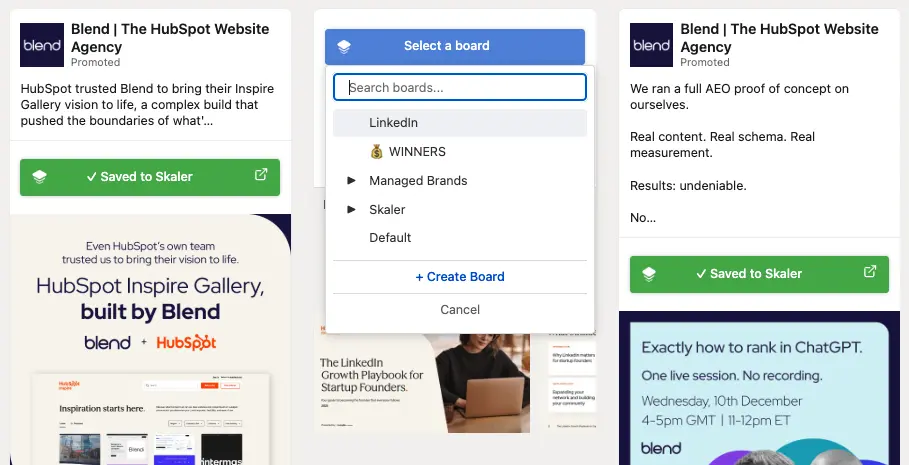
The Skaler Chrome Extension adds a “Save ad” button directly in the LinkedIn Ad Library, just like in the Meta and TikTok libraries.
This instantly turns the LinkedIn Ad Library into your own LinkedIn creative library of high-quality examples.
2. Build a Searchable, Tagged Library of Competitor Ads
Inside Skaler, every saved ad becomes structured data:
- Tags: funnel stage, angle, offer type, industry, etc.
- Notes: insights from you or your team
- Boards: grouped by client, campaign, or theme
You can search across your LinkedIn competitor ads by:
- Angle (“pricing objection”, “compliance risk”)
- Format (“carousel explainer”, “feed video”)
- Offer (“webinar”, “diagnostic”, “free tool”)
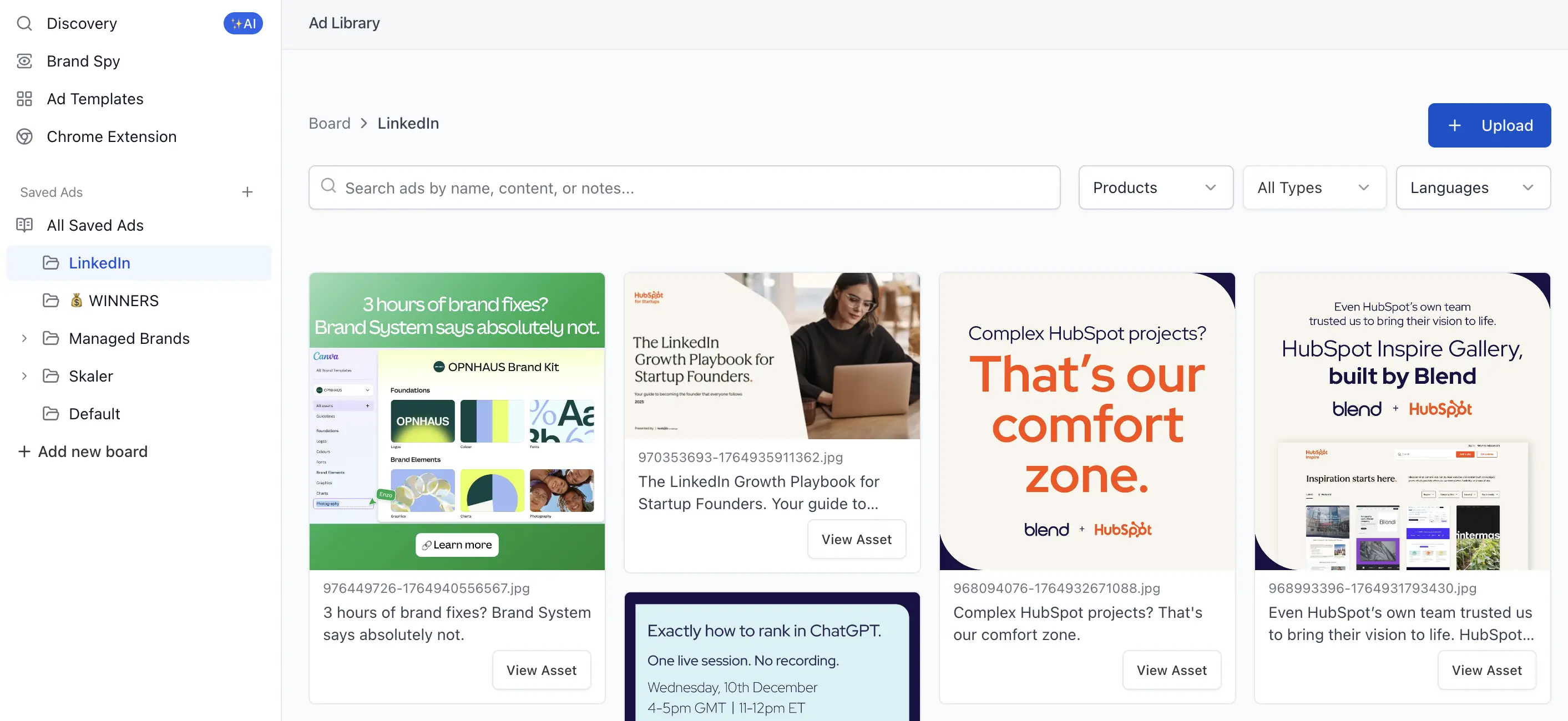
A Skaler board filled with LinkedIn ad examples, tagged and ready to brief the creative team.
No more random screenshots or Notion pages. Just a clean, searchable system.
3. Use AI to Turn Examples Into New LinkedIn Ad Concepts
Once you know what works, Skaler helps you go from example to original creative:
- Generate new hooks based on your favorite ads
- Rewrite competitor angles in your brand voice
- Turn static ads into video scripts
- Create variations for different personas or markets
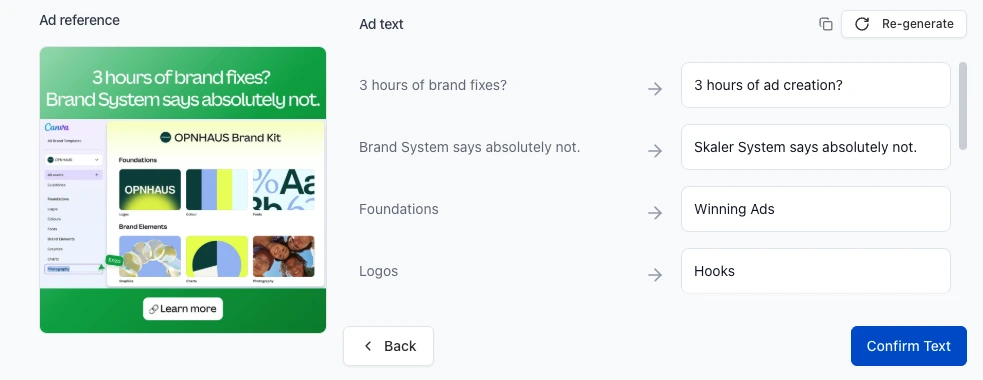
Skaler’s AI takes LinkedIn ad examples you’ve saved and spins out on-brand concepts, hooks, and scripts.
You’re not just copying competitors — you’re cloning the structure of what works and rebuilding it around your product.
4. Recreate & Localize Top LinkedIn Ad Examples
The highest-leverage move is simple:
Find a winning concept → Adapt it → Launch your own version.
Skaler’s AI and image tools let you:
- Rebuild a layout or story arc with your product, branding, and offer
- Generate multiple language versions for new markets
- Create image and video variations to fight ad fatigue
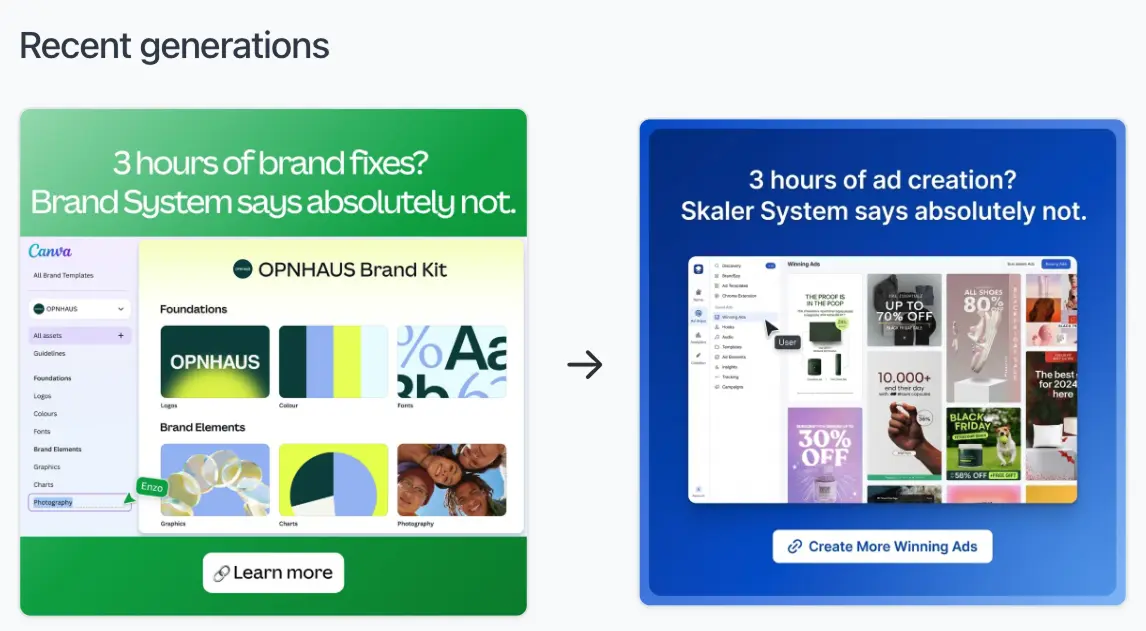
Example workflow: Save a competitor’s LinkedIn ad → send it to Skaler → get on-brand variations ready for testing.
The result: you ship a LinkedIn ad strategy that’s grounded in proven patterns, but tailored to your brand.
5. Keep LinkedIn, Meta, and TikTok Research in One Place
Most performance teams now run cross-platform:
- LinkedIn for B2B buying committees
- Meta for scale and remarketing
- TikTok for top-of-funnel content and UGC
Skaler lets you:
- Save ads from LinkedIn Ad Library, Meta Ads Library, and TikTok Creative Center
- Store everything in the same boards
- Compare hooks, offers, and creative angles across platforms
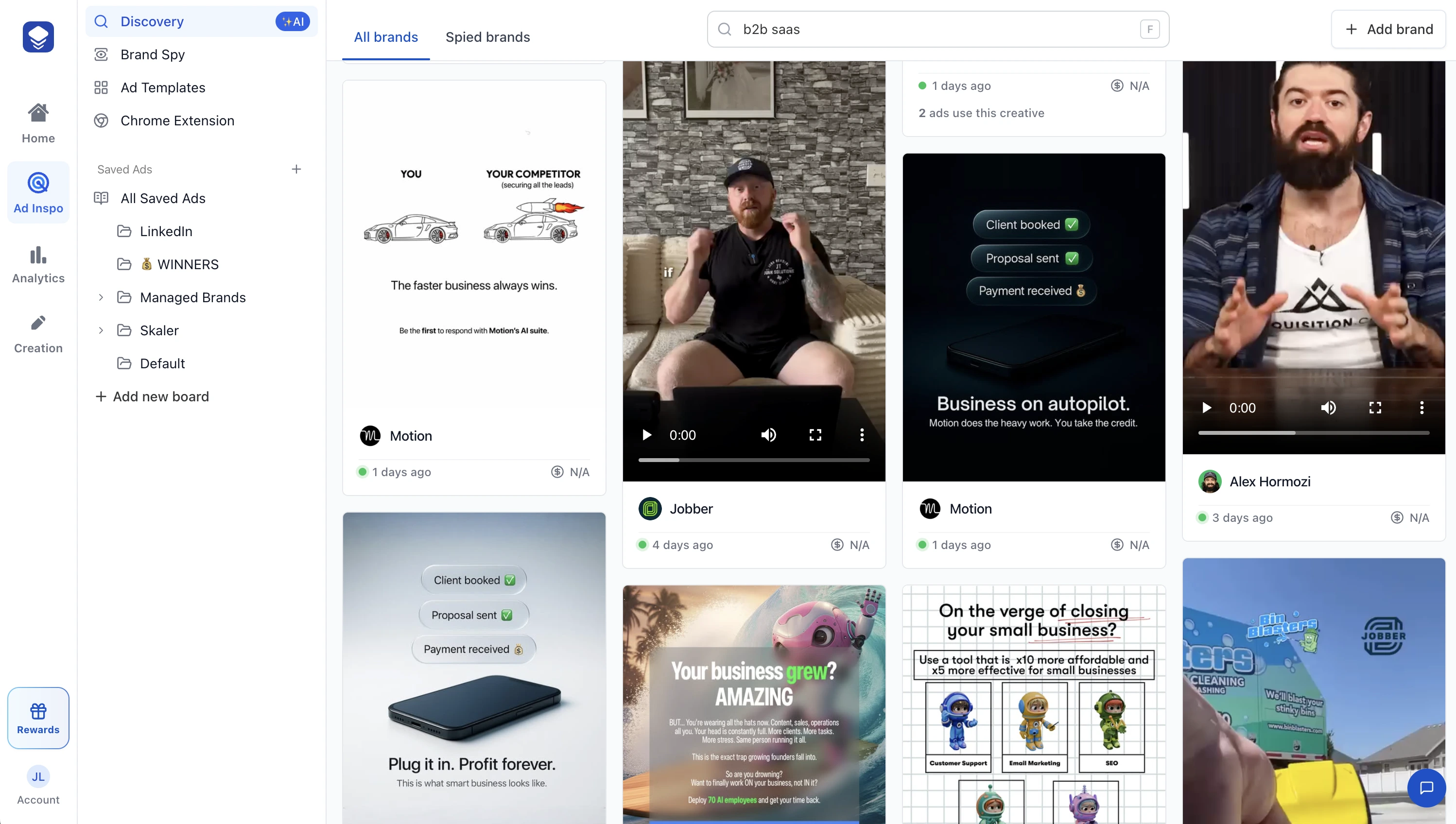
A unified swipe file inside Skaler, mixing LinkedIn, Meta, and TikTok ad examples in one board.
Your team gets a single source of truth for ad inspiration and creative strategy.
When to Use LinkedIn Ad Library vs. Skaler
| Task | LinkedIn Ad Library | Skaler |
|---|---|---|
| See all ads from a competitor | ✅ | ✅ |
| Search by advertiser / keyword | ✅ | ✅ (plus AI search) |
| View basic transparency / targeting | ✅ | ✅ (via saved data) |
| Save ads into a swipe file | ❌ | ✅ |
| Tag and annotate creatives | ❌ | ✅ |
| AI-generate new ad concepts | ❌ | ✅ |
| Recreate competitor ads in your brand | ❌ | ✅ |
| Combine LinkedIn + Meta + TikTok inspiration | ❌ | ✅ |
| Collaborate with a team | ❌ | ✅ |
Example Workflow You Can Steal
Here’s a simple weekly LinkedIn ad research loop:
-
Search the LinkedIn Ad Library
- Start with 3–5 core topics and 5–10 competitors
- Filter by Last 30 days for fresh tests
-
Save the best ads to Skaler
- Use the Chrome extension to save 20–30 strong examples
- Focus on B2B ad examples and lead gen ads similar to your funnel
-
Tag, cluster, and summarize
- Tag by angle, offer, and funnel stage
- Add a quick summary: “This week: most brands push X, Y angle in region Z”
-
Generate new concepts with AI
- Ask Skaler to create 5–10 new variations inspired by those patterns
- Adapt to your product and ICP
-
Launch & review
- Test them in your LinkedIn campaigns
- Feed learnings back into your swipe file and AI prompts
Run this loop every week and you’ll never be stuck for LinkedIn ad inspiration again.
Final Thoughts
The LinkedIn Ad Library is one of the most underrated tools in B2B marketing:
- It gives you real LinkedIn ad examples in your category
- It exposes valuable LinkedIn ads transparency and audience insights
- It lets you see exactly what your competitors are saying — and how often
But to turn those insights into revenue, you need a layer on top:
- A permanent swipe file
- AI to extract patterns and generate new concepts
- A workflow that goes from research → brief → ready-to-launch ads
That’s exactly what Skaler is built for.
If you want to upgrade your LinkedIn research from “scroll and screenshot” to a structured, AI-powered creative system:
👉 Start a free trial of Skaler and turn the LinkedIn Ad Library into your B2B growth engine.
Related Articles
The 80 Most-Saved Meta Ads of August 2026 (Free Swipe File)
We tracked the 80 Meta ads media buyers saved the most this month — from Seed and Loop to AI soap operas running across 9 ad sets. Browse all 80 free, plus the 4 patterns behind them.
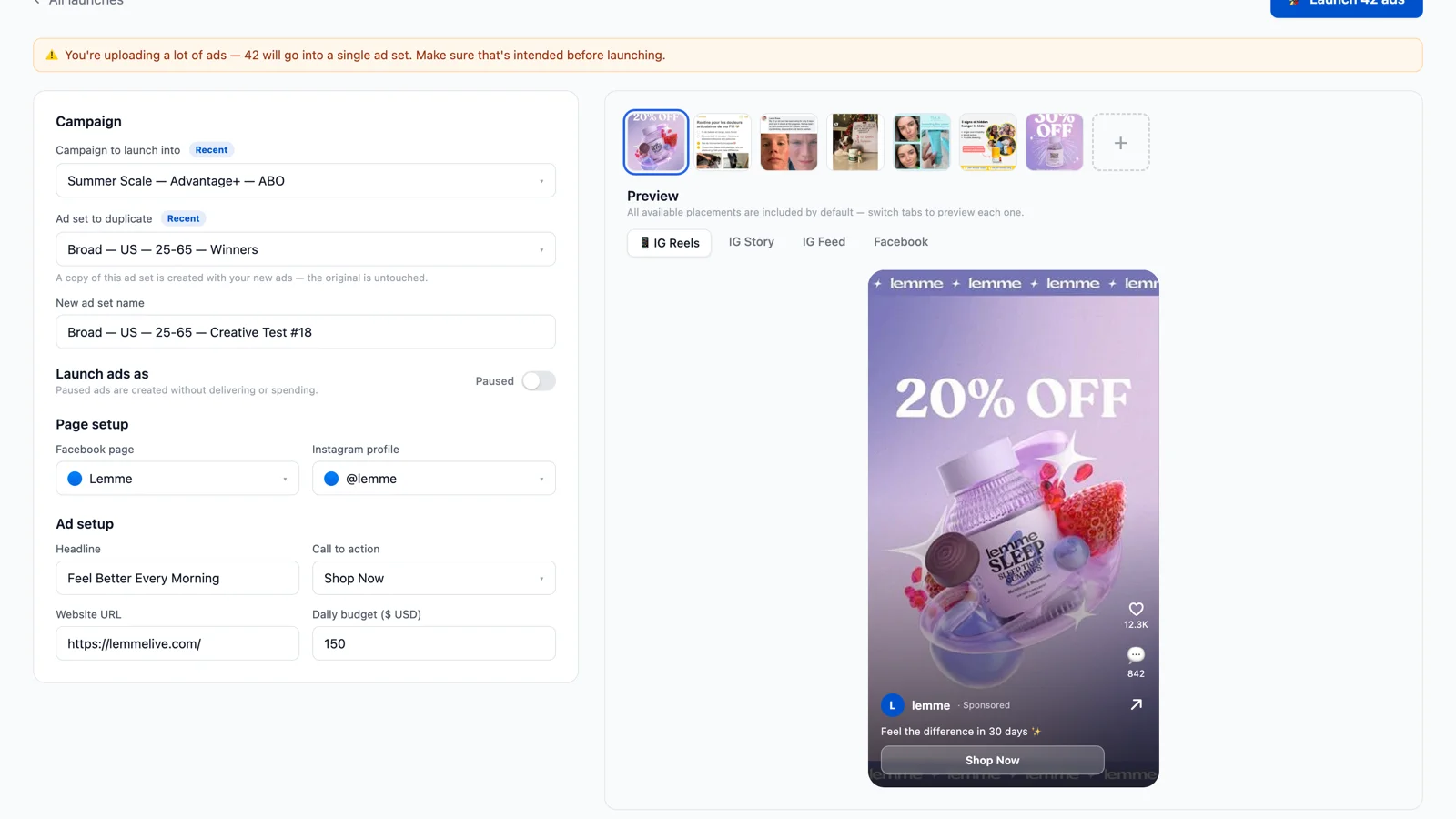
Bulk Ad Launcher for Meta: Launch 100 Facebook Ads in One Click
Skaler's new Bulk Ad Launcher takes you from creatives to live Facebook ads in minutes — drag and drop up to 100 files, duplicate a winning ad set, and launch with copy, budgets, and tracking auto-filled.