
Creating Ads with Skaler
How ad creation works in Skaler
Skaler's creation suite lets you generate ad images and videos using AI. You provide a reference image or describe what you want, pick a tool, and Skaler handles the rest — generating multiple variations you can download, save to your Ad Library, or iterate on.
All creation tools live under Creation in the Navigation Rail, split into Images and Videos.
Set up your product first
The quality of your generated ads depends directly on how well your product profile is filled in. Skaler's AI uses your product name, description, brand colors, USPs, target audience, and tone of voice to tailor every creative it generates.
Before creating your first ad, make sure you've:
- Imported your product via URL or filled in the details manually.
- Added your brand colors and logos.
- Written clear USPs, benefits, and pain points.
- Uploaded product assets (photos, lifestyle images) that the AI can reference.
The more relevant information you provide, the better your ads will be. See Setting Up Your First Product for a full walkthrough.
Image tools
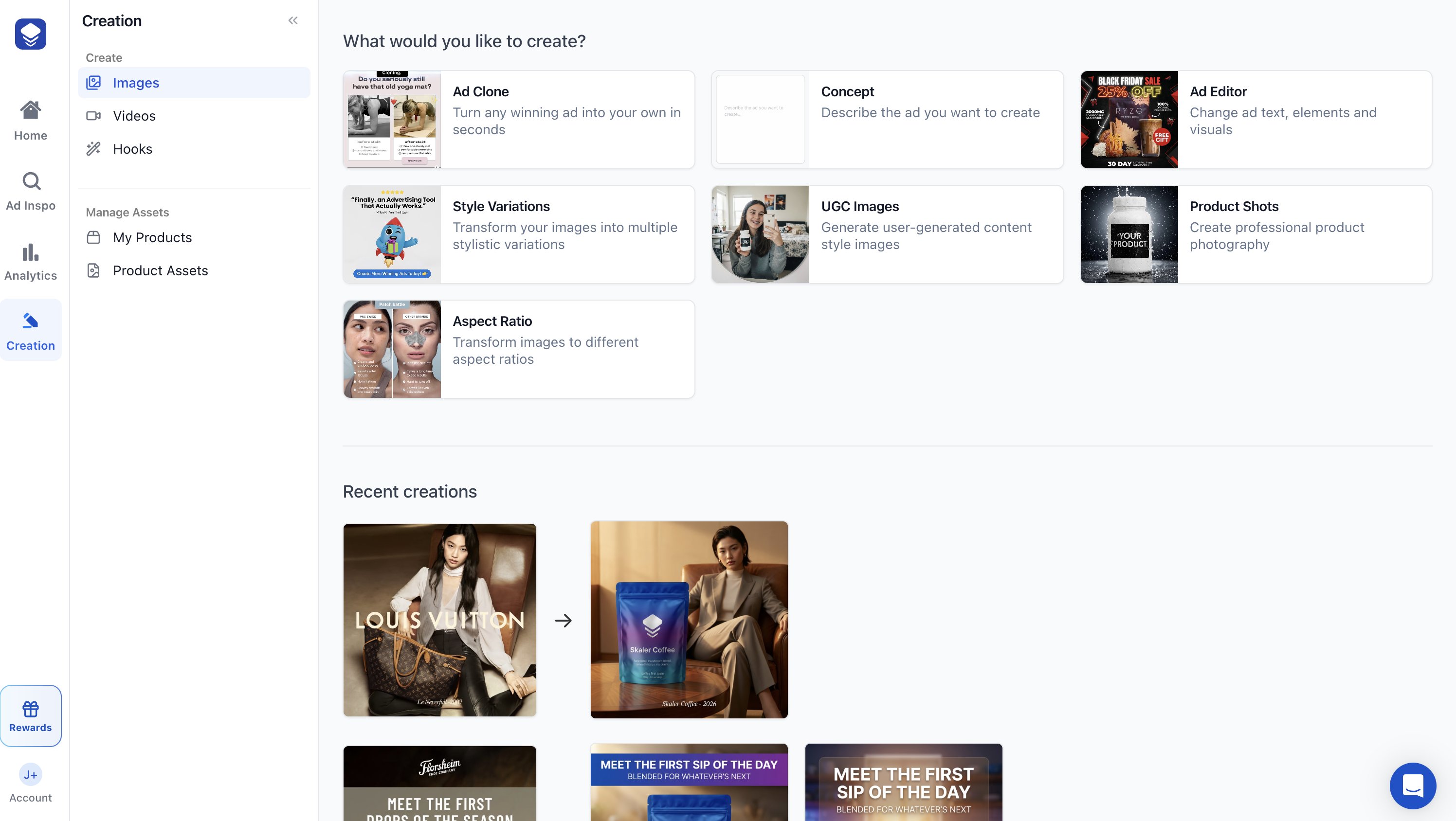
The Images hub has seven tools. The three most popular are:
Ad Clone
Turn any winning ad into your own. Pick an ad from your saved library or Discovery, and Skaler recreates it with your product, brand colors, and messaging. Great for adapting competitor ads or proven formats to your brand.
Concept
Describe the ad you want to create in plain text — for example, "christmas sale with 50% off" — and Skaler generates it. The most flexible tool for bringing original ideas to life.
Ad Editor
Upload an existing ad image and change its text, elements, or visuals with a single prompt. Useful for testing different headlines, CTAs, or visual tweaks on an ad that's already performing.
Other image tools
- Style Variations — Transform an image into 4 different artistic styles.
- UGC Images — Generate authentic user-generated content style photos.
- Product Shots — Create professional studio product photography.
- Aspect Ratio — Resize images to different aspect ratios (e.g., 1:1 to 9:16).
Video tools
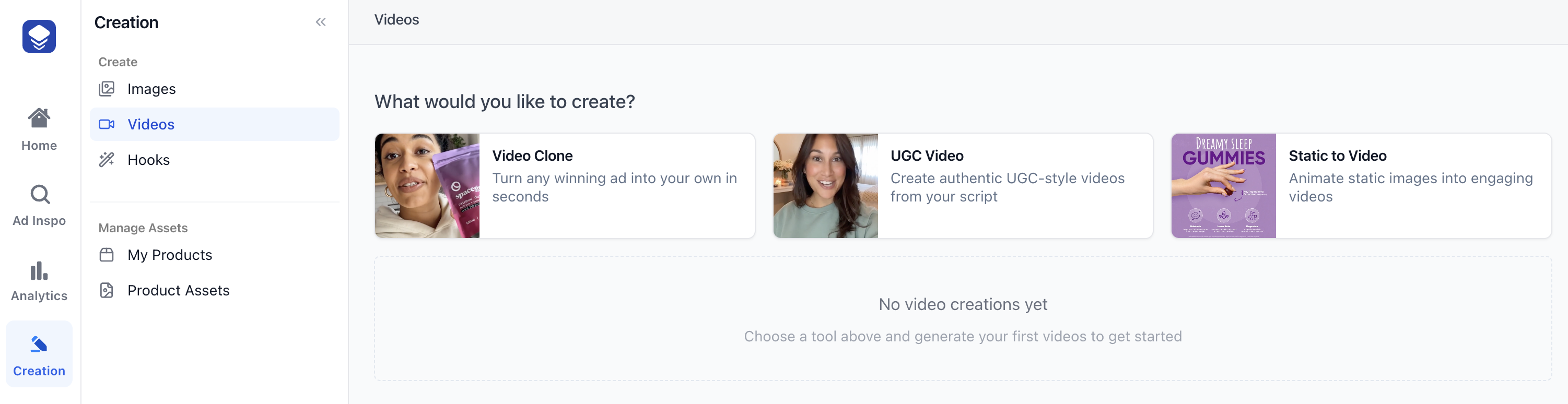
The Videos hub has three tools:
- Video Clone — Turn any winning video ad into your own, just like Ad Clone but for video.
- UGC Video — Create authentic UGC-style videos from a script, with AI-generated presenters.
- Static to Video — Animate a static image into an engaging video.
Video credits are calculated per second of output and depend on the quality model (Standard or Pro). See Understanding Credits for exact costs.
Workflow tips
- Start with Ad Clone if you already have reference ads saved in your library — it's the fastest way to create on-brand variations of proven formats.
- Use Concept when you have a specific creative idea that doesn't match any existing ad.
- Iterate with Ad Editor to test copy and visual changes on your best-performing creatives.
- Check your recent creations at the bottom of both the Images and Videos hubs — you can download, retry, or build on any previous generation.