
Setting Up Your First Product
What is a Product?
In Skaler, a Product represents the brand or product you're creating ads for. Each product has its own profile, asset library, and marketing copy that Skaler's AI uses across all creation tools.
Create a new product
- Navigate to Creation > My Products from the sidebar.
- Click Add New Product.
- You'll first be asked to enter your product's website URL. Skaler's AI will extract your brand details automatically.
- Review the extracted details and click Continue to open the full product editor.
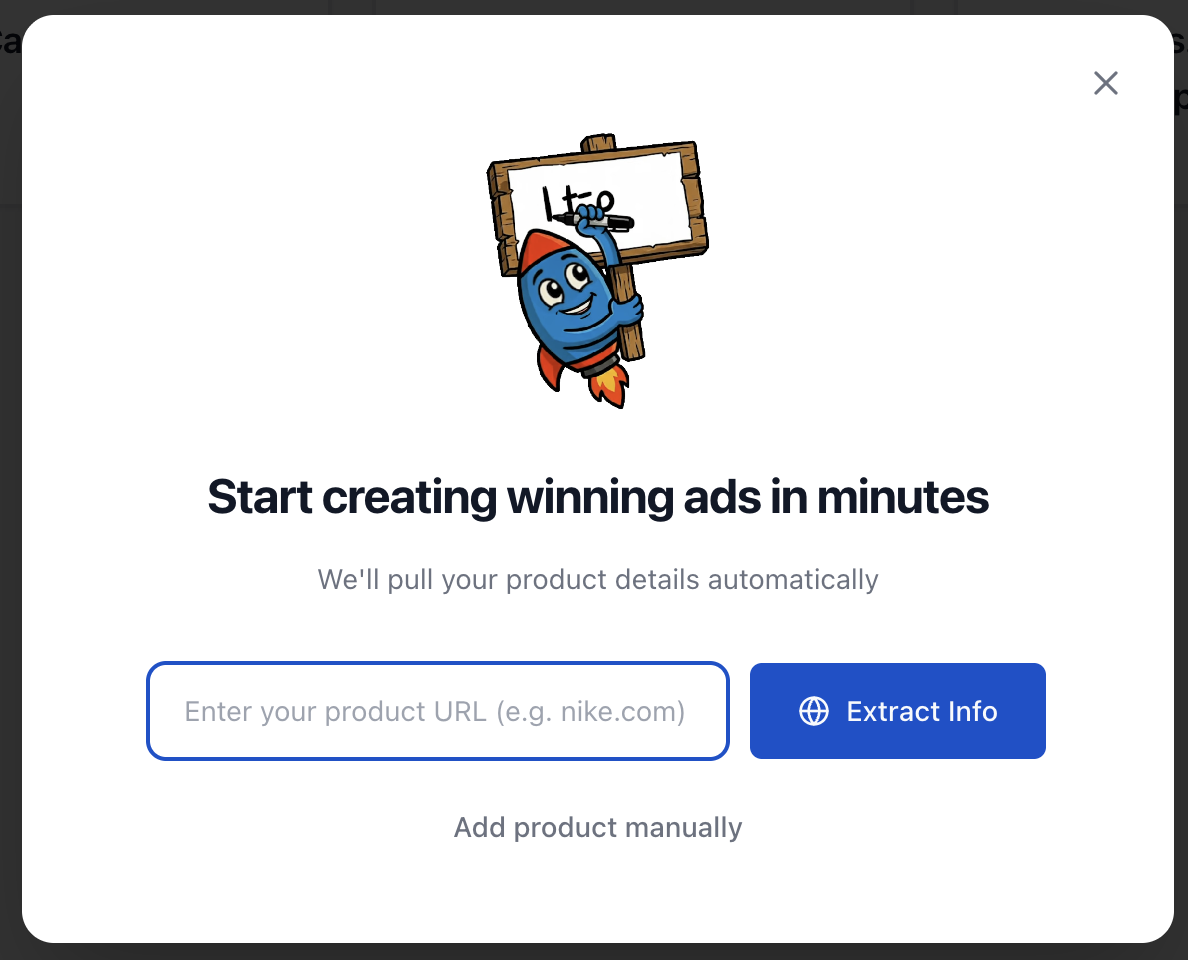
Import from URL
When you provide a website URL, Skaler extracts:
- Product name and initials
- Description
- Industry
- Brand colors (primary and secondary)
- USPs, benefits, and pain points
- Target audience
- Features and CTAs
- Tone of voice
- Brand logo
If extraction fails (e.g., the site blocks scraping), you can click Add product manually to fill in everything yourself.
Product editor tabs
The product editor has four tabs:
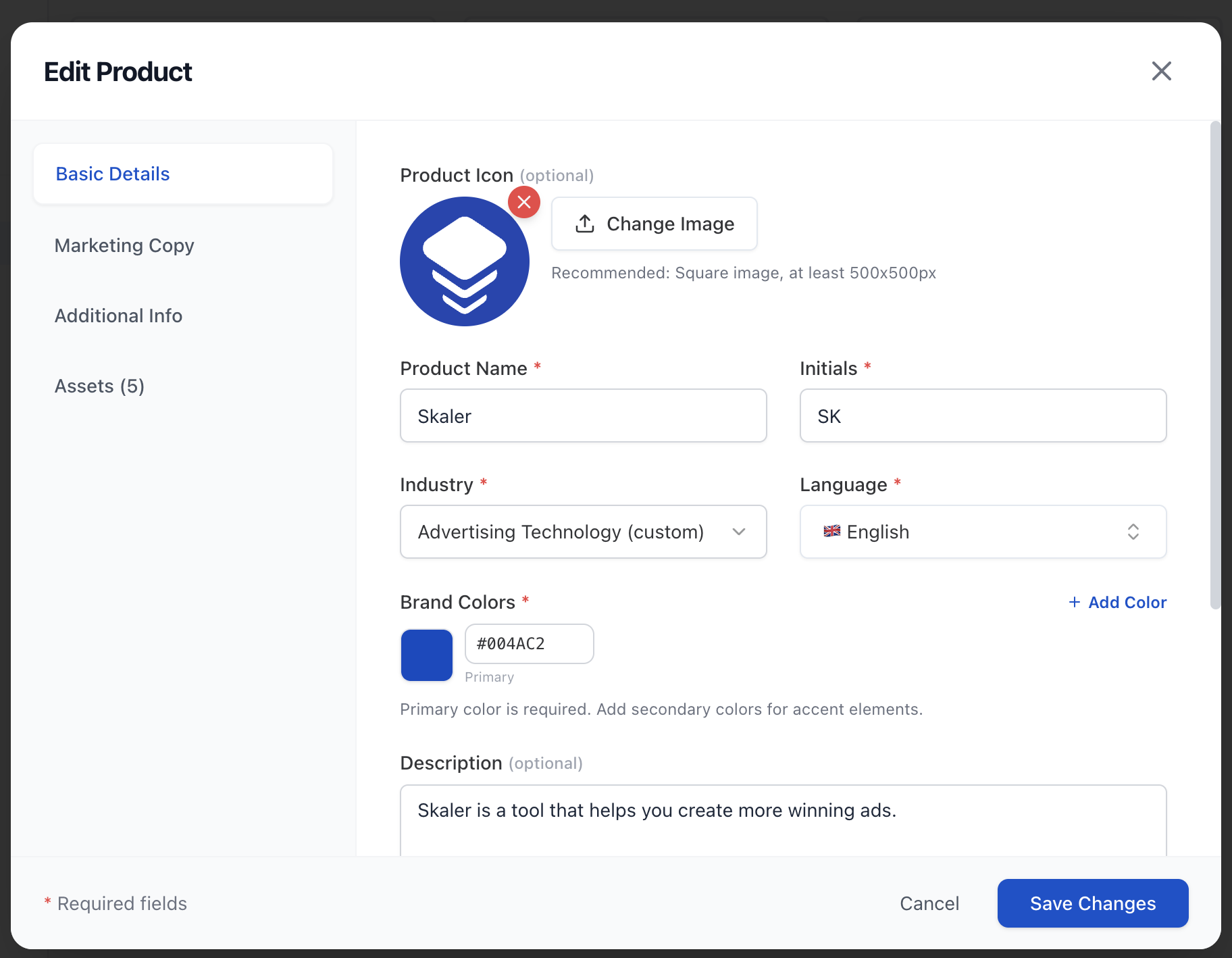
- Basic Details — Product icon, name, initials, industry, language, brand colors, description, and brand logos (square and horizontal).
- Marketing Copy — USPs, benefits, pain points, and target audience.
- Additional Info — Features, CTAs, tone of voice, and additional context.
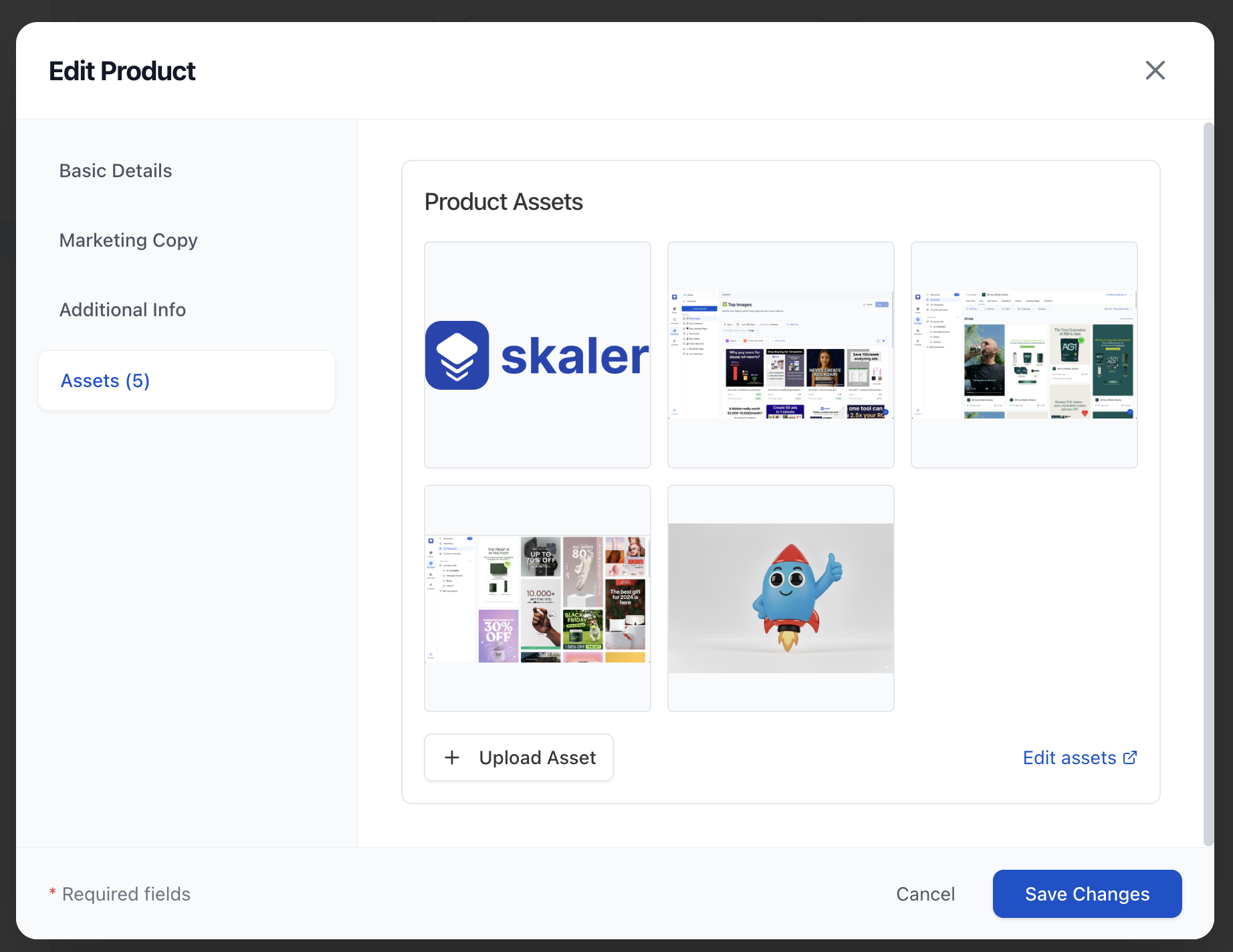
- Assets — Upload product-specific images and videos (available after saving the product).
The required fields are product name, initials, industry, language, and at least one brand color.
Add product assets
Once your product is saved, switch to the Assets tab or go to Creation > Product Assets to upload images and videos that represent your brand. These assets are used across Skaler's creation tools — from ad cloning to image generation.
Next steps
- Navigating the Dashboard — Explore the full Skaler interface.
- Using Ad Discovery — Start finding inspiration for your ad creatives.